-1.png?width=798&height=406&name=k12-4%20(2)-1.png "K12 Montana Logo")
A few weeks ago, a Montana school administrator clicked “Play voicemail” on a Google Calendar invitation.
2-step verification can be turned on. It didn’t matter.
If you support Google Workspace in a school, this attack is coming to your users, if it hasn’t already. Here’s how it works and the settings worth changing this week.
How it lands
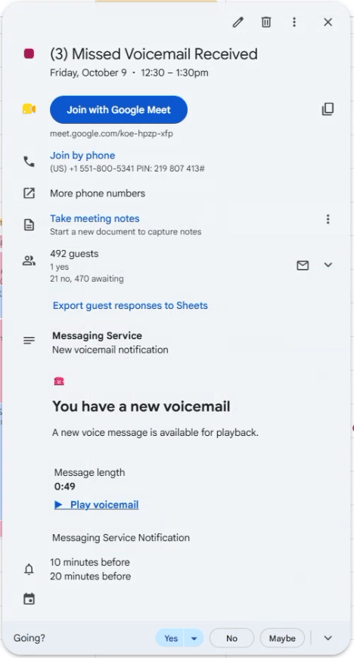
The lure is a calendar event titled something like “(3) Missed Voicemail Received.” The description looks like a phone system notification: “You have a new voicemail,” “Message length 0:49,” and a “Play voicemail” link. It’s set for later that day, with reminders at 10 and 20 minutes.
Calendar invites are a great delivery method for attackers, for a few reasons:
- The invitation is sent by Google’s own servers, so it passes SPF, DKIM and DMARC.
- Google Calendar adds invitations to the calendar automatically by default, even from strangers. If Gmail filters the email, the event still sits on the calendar and pops up on the user’s phone.
- Most email security tools don’t look inside calendar events.
- Lots of school offices really do get voicemails by email, so “Play voicemail” feels normal.
Security researchers have reported calendar-based attacks climbing more than 1,000% month over month since August. This is not a one-off attack.
What happens on the click
The link opens a Google sign-in page. And here’s the part every tech needs to understand: it IS the real Google sign-in. The attacker’s server sits in the middle and relays everything. The user types their password, Google sends the usual 2-step prompt or code, the user approves it, and Google signs them in.
The server in the middle keeps a copy of the session cookie Google hands back. Now the attacker is simply “already signed in.” No password needed, no 2-step prompt, nothing.
These are called adversary-in-the-middle (AiTM) kits, and they’re cheap and widely available. Codes, text messages and phone prompts can all be relayed. Passkeys and security keys can’t, because they only work on the real accounts.google.com.
If one of your users clicks
- Reset sign-in cookies and the password in the Admin console (Directory > Users > the user > Security). A password change alone doesn’t necessarily disconnect every app the attacker set up.
- Remove anything the user doesn’t recognize under Connected applications and App passwords. Check 2-step methods and recovery email and phone too.
- Check Gmail for new filters, forwarding and delegates. Attackers love a quiet rule that hides replies.
- Delete the bad events from the user’s own calendar and send cancellations. That removes them from every guest’s calendar, including people outside your domain.
- Search User log events for the attacker’s IPs across your whole domain. One click rarely means one victim.
- Warn the folks who handle money. An attacker who read a business office mailbox for an hour now knows your invoice threads and vendors. Payment-change fraud often follows weeks later.
Settings worth changing this week
- Only add invitations from known senders. As of August 2026, admins can set this org-wide under Apps > Google Workspace > Calendar > Advanced settings. It only affects new invitations, so do it now.
- Passkeys or security keys for anyone with payment authority: superintendent, clerk, business manager, payroll. These are the only 2-step methods a relay page can’t pass through.
- Block unconfigured third-party apps under Security > API controls, and only allow apps you’ve reviewed.
- Turn off app passwords if nothing in your building depends on them.
- Shorten session length for staff so stolen sessions expire sooner.
And give your staff one simple rule: voicemails never arrive as calendar invitations. If an event says “Play voicemail,” don’t click it. Report it and let IT know.
We’re here to help
If you’d like a second set of eyes on your Google Workspace settings, or help digging through logs after a click, reach out.
As always, you can call or email with any questions.
Jeff Patterson, K12 Montana